
Version control is one of those skills that quietly separates beginners from professionals. If you’ve ever lost code, overwritten someone else’s work, or struggled to collaborate, tools like Git and GitHub solve those problems elegantly—once you understand them.
This guide walks you through the essentials of Git and GitHub, explains how they fit together, and gives you a practical cheat sheet you can reference anytime.
What Are Git and GitHub?
Git is a distributed version control system. It tracks changes in your code, lets you revert to previous versions, and helps multiple people work on the same project without chaos.
GitHub is a cloud platform that hosts Git repositories. It adds collaboration features like pull requests, issue tracking, and code reviews.
Think of it this way:
- Git = the engine
- GitHub = the interface + collaboration layer
Why Git Matters
Before diving into commands, it’s worth understanding why Git is so widely used:
- Version history: Every change is tracked.
- Branching: Work on features independently.
- Collaboration: Multiple developers can work simultaneously.
- Backup: Your code lives in multiple places.
- Experimentation: Try things without breaking the main project.
Basic Git Workflow
Most Git workflows follow this pattern:
- Modify files
- Stage changes
- Commit changes
- Push to remote repository
Let’s break that down.
Core Git Concepts
Repository (Repo)
A folder that Git tracks.
Commit
A snapshot of your project at a specific point in time.
Branch
A parallel version of your code.
Merge
Combining changes from different branches.
Remote
A version of your repo hosted elsewhere (like GitHub).
Git Setup (First-Time Only)
Before using Git, configure your identity:
git config --global user.name "Your Name"
git config --global user.email "your@email.com"
Check your config:
git config --list
Creating and Cloning Repositories
Initialize a new repo
git init
Clone an existing repo
git clone https://github.com/username/repo.git
Tracking Changes
Check status
git status
Shows:
- Modified files
- Staged files
- Untracked files
Add files to staging
git add filename
Add everything:
git add .
Commit changes
git commit -m "Your commit message"
Good commit messages:
- Be clear
- Be concise
- Explain why, not just what
Viewing History
git log
Compact view:
git log --oneline
Branching
Create a branch
git branch feature-name
Switch branches
git checkout feature-name
Or (modern way):
git switch feature-name
Create and switch in one step
git checkout -b feature-name
Merging
Switch to the branch you want to merge into (usually main):
git checkout main
Then merge:
git merge feature-name
Working with GitHub
Add a remote repository
git remote add origin https://github.com/username/repo.git
Push to GitHub
git push origin main
First push (set upstream):
git push -u origin main
Pull changes
git pull origin main
Forking and Pull Requests (GitHub Workflow)
Typical open-source workflow:
- Fork a repository
- Clone your fork
- Create a branch
- Make changes
- Push to your fork
- Open a Pull Request
Handling Merge Conflicts
Conflicts happen when Git can’t automatically merge changes.
Steps to resolve:
- Open conflicted files
- Look for markers:
<<<<<<< HEAD
Your changes
=======
Other changes
>>>>>>> branch-name
- Edit manually
- Add and commit:
git add .
git commit
Undoing Changes
Undo unstaged changes
git checkout -- filename
Unstage a file
git reset filename
Undo last commit (keep changes)
git reset --soft HEAD~1
Undo last commit (discard changes)
git reset --hard HEAD~1
Stashing Changes
Temporarily save work without committing:
git stash
Restore it:
git stash pop
Git Ignore
Create a .gitignore file to exclude files:
node_modules/
.env
*.log
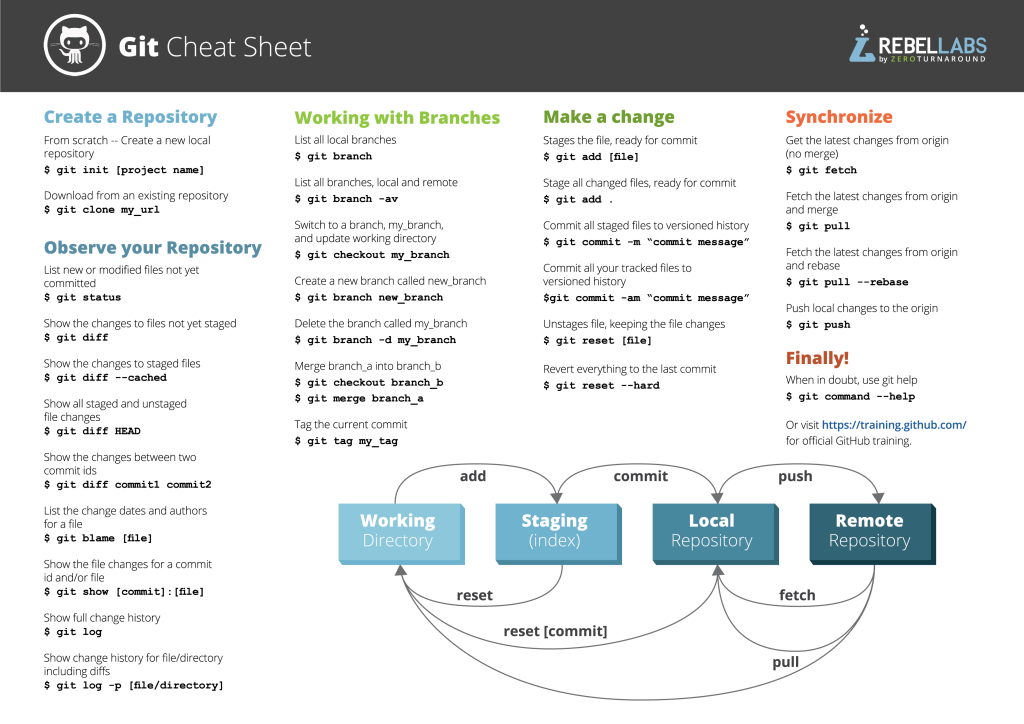
🚀 Git & GitHub Cheat Sheet
Here’s your quick reference.
🔧 Setup
git config --global user.name "Name"
git config --global user.email "Email"
git config --list
📁 Repository
git init
git clone <repo-url>
📊 Status & Logs
git status
git log
git log --oneline
➕ Staging & Committing
git add <file>
git add .
git commit -m "message"
🌿 Branching
git branch
git branch <name>
git checkout <name>
git checkout -b <name>
git switch <name>
🔀 Merging
git checkout main
git merge <branch>
🌍 Remote (GitHub)
git remote add origin <url>
git push -u origin main
git push
git pull
🧹 Undo & Reset
git checkout -- <file>
git reset <file>
git reset --soft HEAD~1
git reset --hard HEAD~1
📦 Stashing
git stash
git stash pop
🔍 Inspect Changes
git diff
git diff --staged
🗑️ Delete Branch
git branch -d <branch>
🔄 Syncing
git fetch
git pull
git push
Best Practices
1. Commit Often
Small commits are easier to manage than huge ones.
2. Use Meaningful Messages
Bad:
fixed stuff
Good:
Fix login bug caused by null token
3. Use Branches for Everything
Never work directly on main.
4. Pull Before You Push
Avoid conflicts:
git pull origin main
5. Review Before Committing
git diff
Common Mistakes to Avoid
- Forgetting to pull before pushing
- Committing sensitive data
- Working directly on
main - Ignoring
.gitignore - Making massive commits
When to Use Git vs GitHub
- Use Git locally for tracking and managing code
- Use GitHub for collaboration, backups, and sharing
Final Thoughts
Git might feel overwhelming at first, but it’s one of the highest-leverage tools you can learn as a developer. Once the workflow clicks—edit, stage, commit, push—it becomes second nature.
The cheat sheet above isn’t just for beginners. Even experienced developers refer back to these commands regularly.
If you want to go further, the next steps would be:
- Rebasing (
git rebase) - Advanced branching strategies (Git Flow)
- CI/CD integrations with GitHub Actions
If you want, I can also turn this into:
- a printable one-page cheat sheet
- a visual diagram of Git workflows
- or a hands-on practice guide with exercises

With 23+ years in the Web Hosting Industry, Brian has had the opportunity to design websites for some of the largest companies in the industry. Brian currently holds the position as Co-Founder and Creative Director at WebHosting,coop Internet Cooperative