
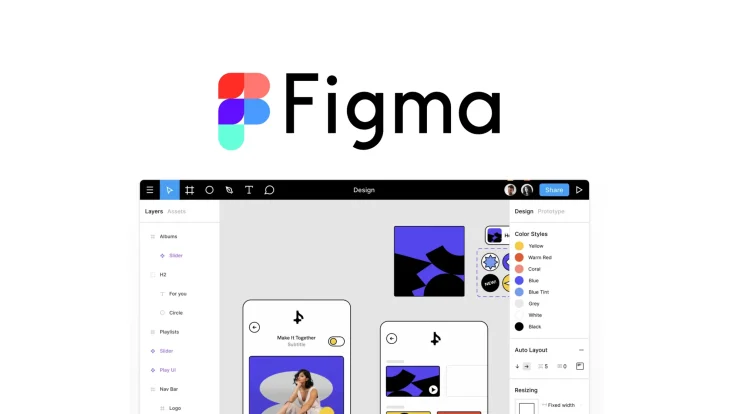
Figma: The Collaborative Interface Design Tool
If you’re stepping into the world of design—whether for websites, apps, or digital products—you’ve almost certainly heard of Figma. It’s one of the most widely used design tools in the world today, especially for UI (user interface) and UX (user experience) design.
But if you’re a beginner, it can feel a bit overwhelming at first:
- What exactly is Figma?
- Why do designers use it instead of other tools?
- What can it actually do?
- And how much does it cost?
What Is Figma?
Figma is a cloud-based design tool used to create digital interfaces like:
- Websites
- Mobile apps
- Software dashboards
- Wireframes (basic layouts)
- Interactive prototypes
Unlike traditional design software that you install on your computer, Figma runs mostly in your web browser. That means you can log in from almost any device and start designing immediately.
At its core, Figma is built for UI/UX design and collaboration. That second part—collaboration—is one of the biggest reasons it has become so popular.
Instead of sending files back and forth, multiple people can work on the same design in real time, similar to Google Docs.
Many teams use Figma as a “single source of truth” for design projects, meaning everyone—from designers to developers—works inside the same file.
Why Figma Became So Popular
Figma didn’t just replace older design tools—it changed how design teams work.
Here’s why it stands out:
1. It runs in the browser
No heavy installation. No complicated setup. Just open it and design.
2. Real-time collaboration
Multiple people can edit a file at the same time and see changes instantly.
3. It works for teams of all sizes
Freelancers, startups, and large companies all use it.
4. It bridges design and development
Developers can inspect designs directly and grab code-like values such as spacing, colors, and fonts.
5. It’s widely adopted in the industry
Many companies now specifically ask for Figma experience in job postings.
In short, Figma became popular because it makes design faster, more accessible, and more collaborative.
Key Features of Figma
Figma isn’t just a drawing tool—it’s a full design ecosystem. Let’s break down its most important features in beginner-friendly terms.
1. Vector-Based Design Tools
Figma allows you to create shapes, icons, and layouts using vector graphics.
This means:
- Designs stay sharp at any size
- You can scale things without losing quality
- It’s perfect for logos, icons, and UI elements
Unlike pixel-based editing tools, vector design is essential for modern app and web design.
2. Auto Layout (Responsive Design)
Auto Layout is one of Figma’s most powerful features.
It lets you create designs that automatically adjust when content changes.
For example:
- If you add more text, a button expands automatically
- If you resize a screen, elements reposition themselves
This is extremely useful for building responsive websites and apps.
3. Components and Design Systems
Components are reusable elements like:
- Buttons
- Navigation bars
- Cards
- Input fields
Once you create a component, you can reuse it everywhere. If you update it once, it updates everywhere.
This helps teams stay consistent and saves a huge amount of time.
4. Prototyping
Figma lets you turn static designs into clickable prototypes.
That means you can:
- Link pages together
- Create button interactions
- Simulate real app behavior
This helps teams test ideas before writing any code.
5. Collaboration Tools
Figma is built for teamwork.
It includes:
- Real-time multi-user editing
- Live cursors showing who is working
- Comments directly on designs
- Version history (you can go back in time)
This makes feedback and collaboration extremely smooth.
6. FigJam (Whiteboarding Tool)
Figma also includes a companion tool called FigJam, used for brainstorming.
Teams use it for:
- Mind maps
- User flows
- Planning sessions
- Brainstorming ideas
It’s like a digital whiteboard connected to your design workflow.
7. Developer Handoff Tools
Figma makes it easy for developers to turn designs into code.
Developers can:
- Inspect spacing and measurements
- Copy CSS values
- Download assets like images and icons
- Understand design structure
This reduces confusion between designers and developers.
8. Plugins and Community Resources
Figma has a massive plugin ecosystem.
You can extend it with tools for:
- Icons
- Stock images
- Accessibility checks
- Content generation
- UI kits
There is also a community library where designers share templates and components.
9. Cloud Storage and Version History
Everything in Figma is saved automatically in the cloud.
That means:
- No file loss
- No manual saving
- Access from anywhere
- Easy version rollback
10. Dev Mode (Advanced Feature)
Figma’s Dev Mode is designed specifically for developers.
It provides:
- Clean handoff views
- Code snippets
- Design specifications
- Easier inspection of UI elements
This helps bridge the gap between design and engineering teams.
Who Uses Figma?
Figma is used by a wide range of people:
Designers
UI/UX designers use it to build app and website interfaces.
Developers
They use it to understand how designs should be built.
Product managers
They use it to review and plan product features.
Startups and companies
Teams use Figma as their central design system.
Students and beginners
Many people learn design using Figma because it’s free to start.
Figma Pricing Explained
One of the most attractive parts of Figma is that you can start for free.
Let’s break down the pricing in simple terms.
1. Free Plan (Starter Plan)
Figma’s free plan is surprisingly powerful.
It includes:
- Basic design tools
- Limited number of files
- Real-time collaboration
- Plugins
- Community templates
This plan is ideal for:
- Beginners
- Students
- Personal projects
- Learning UI/UX design
Even professionals sometimes use the free plan for small work.
2. Professional Plan
The Professional plan is designed for individuals and small teams.
Typical pricing is around:
- About $12–$15 per editor per month (depending on billing cycle)
It includes:
- Unlimited projects
- Advanced collaboration features
- Shared team libraries
- More control over design systems
This is the most commonly used paid tier for freelancers and small teams.
3. Organization Plan
This plan is for larger teams and companies.
It includes:
- Advanced design system controls
- Admin features
- Security tools
- Centralized management
It typically costs significantly more than the professional plan and is designed for scaling companies.
4. Enterprise Plan
This is the highest tier, built for large corporations.
It includes:
- Advanced security (SSO, permissions)
- Dedicated support
- Enterprise-level administration
- Large-scale collaboration tools
Pricing is custom and depends on company size.
Is Figma Free Enough?
For many beginners, yes.
The free plan is often enough to:
- Learn design basics
- Build a portfolio
- Create simple apps or websites
- Practice UI/UX skills
You only need to upgrade if you start working in teams or need advanced collaboration features.
Advantages of Figma
Here’s why people love it:
- Easy to learn compared to older design tools
- Works on any device with a browser
- Strong collaboration features
- Excellent for UI/UX design
- Free plan is very usable
- Large community and resources
Limitations of Figma
Figma is powerful, but not perfect.
Some limitations include:
- Not ideal for advanced photo editing
- Can slow down with extremely large files
- Requires internet for full functionality
- Less suited for print-heavy design work
Final Thoughts
Figma has become one of the most important design tools in the modern digital world. It combines simplicity, collaboration, and powerful UI design features into a single platform that works for beginners and professionals alike.
If you are just starting out, Figma is often the easiest entry point into design because:
- It’s free to begin
- It works in your browser
- It teaches real-world design workflows
- It’s widely used in the industry
In short, Figma isn’t just a tool—it’s a modern design environment that helps teams build digital products faster and more efficiently.
If you want to get into UI/UX design, learning Figma is one of the best starting points you can choose today.

With 23+ years in the Web Hosting Industry, Brian has had the opportunity to design websites for some of the largest companies in the industry. Brian currently holds the position as Co-Founder and Creative Director at WebHosting,coop Internet Cooperative